


Rio Records Frequently Asked Questions
Tips Before You Start:
Please use a laptop or desktop computer—as opposed to a mobile device—and we recommend the Chrome web browser for this experience. It’s difficult to explore the online experience on mobile devices, which is critical to enjoy Rio Records. Firefox, Safari, and Edge are supported, but we think you’re likely to have the best quality experience on Chrome. You can download Chrome here.
Part of the experience utilizes the web-conferencing platform Zoom, which we recommend installing in advance, and can be downloaded here. If you have already installed Zoom, we recommend checking to make sure you are running the most recent version (we recommend at least version 5.4.0). Instructions for updating Zoom can be found here.
Have a phone handy! You might come across a number or two you might want to call.
Totally optional, but you might want to grab the following before the experience begins:
Something to write on
Something to write with
A handful of dirt
A glass of water
When I go to the website, I receive an error saying:
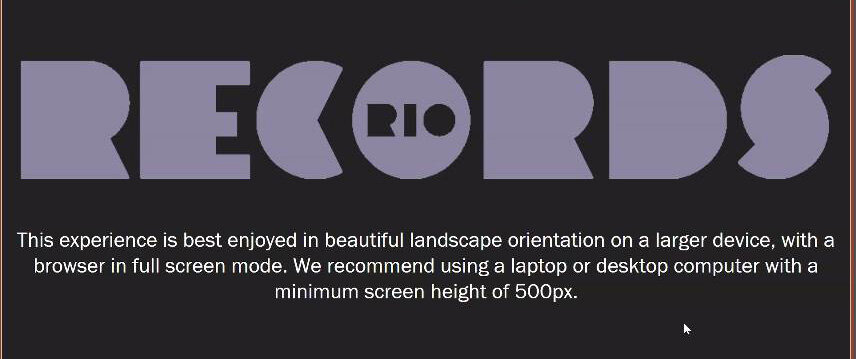
This message appears when the platform detects that the screen the user is trying use is too small. There are three ways of troubleshooting:
Make sure that the Chrome window is full screen.
Increase the screen resolution on the computer.
On a Mac:
Choose Apple menu > System Preferences.
Click Displays.
Select Scaled, then select any of the four or five scaled resolutions, depending on your Mac model. With scaled resolutions, text and objects can appear larger and more visible, or smaller to provide more space for windows and apps.
On a Windows PC:
Open Screen Resolution by clicking the Start button , clicking Control Panel, and then, under Appearance and Personalization, clicking Adjust screen resolution. Click the drop-down list next to Resolution, move the slider to the resolution you want, and then click Apply.
Zoom out on the browser window.
On a Mac:
Press these three keys together: Option, Command, and Minus sign (-).
On a PC:
Press Control and the Minus sign (-).
My Ticket ID isn’t letting me log in:
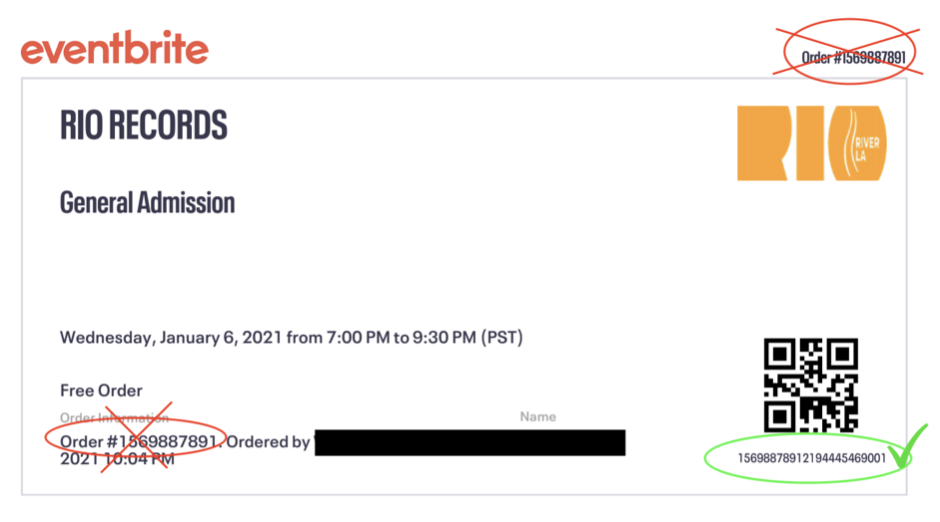
Make sure you are using your Ticket ID (a 23-digit number), not the order number (10-digit number). The Ticket ID can be found below the QR code on the PDF ticket that was issued to you at purchase, and in the “Rio Records - Important Ticket Information” email you received from Alison Vincent, Ph.D.
If it’s still not working, send an email to Alison at [email protected], and she will help you troubleshoot.
Use this image to help you find your Ticket ID:
Videos seem to be loading slowly or are freezing:
Please close all other browsers and browser tabs, as well as any non-essential apps on your computer for the duration of the experience.
We recommend disabling any VPN services you use normally, which can negatively affect your bandwidth and video playback speed.
I got stuck:
If you think you got stuck or found yourself on a page that doesn’t look right, first try clicking the “recycle”button in the bottom left of the screen.
If that doesn’t resolve the issue, use your browser’s refresh button. This should move you back to where you were exploring.
If that doesn’t fix anything, we’d love to hear more from you to improve the experience. Please take a screenshot of your entire screen where you got stuck, and send it to Alison at [email protected].
I can’t hear anything:
When you begin the experience, you should hear music playing. If you don’t, follow these steps:
Check your device/computer/speakers and make sure your volume is turned on and up.
Click the small circular “recycle” icon in the bottom left corner of the screen. If you see a “play” icon or a “Click to unmute” icon on the first video player, click it, and your audio should begin working.
Most web browsers disable or mute automatic playback by default, which might prevent you from hearing the audio in our experience. Follow the instructions below based on the browser you are using if the previous steps don’t work:
Chrome
The latest version of Chrome has a policy that blocks unwanted autoplays and sound when a user opens a new website on their desktop, which may prevent audio from playing.
In order to bypass this, you may need to manually click on a play button on your screen. Over time, Chrome should learn your autoplay preferences.
Firefox
Click the "i" icon to the left of the address bar.
In the Permissions section, confirm the Autoplay setting is set to Allow Audio and Video.
If not, click on the dropdown arrows to select that option.
Safari
Open the Preferences menu and select Websites.
Select Auto-Play on the preferences sidebar.
Select www.rio-records.com and Allow All Auto-Play from the dropdown menu (see screenshot below)
If the speaker icon in your address bar is greyed out, click it, and it should turn blue and your audio should begin working:

Address Bar audio setting
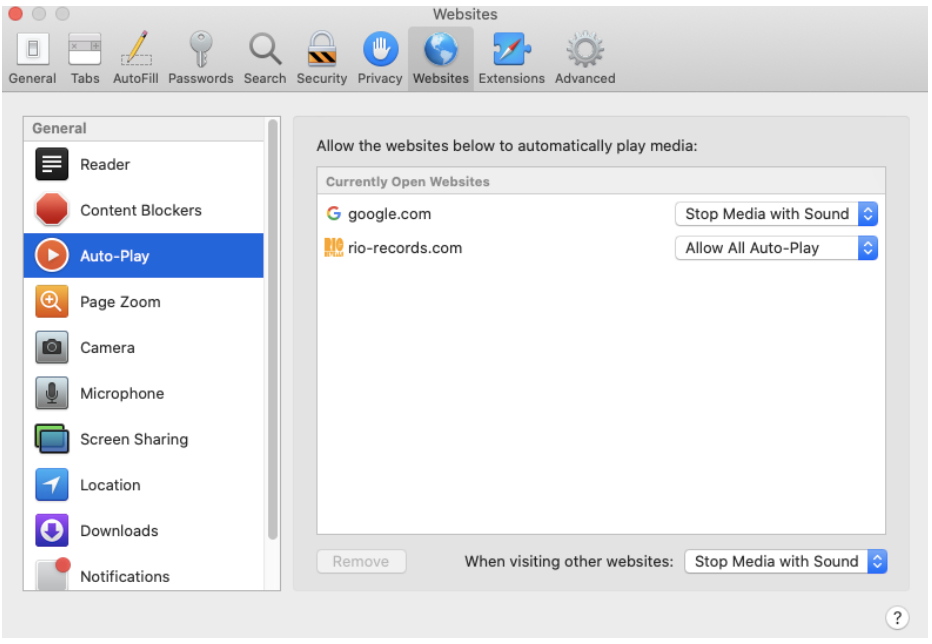
Safari Auto-Play settings